

PatchRx PatchCap
Need help with your PatchRx PatchCap? Find everything you need to know from set up to troubleshooting. We’ve got you covered.
Jump To SectionHow It Works

Top Tips for Successful Measurement
Setup Before Use
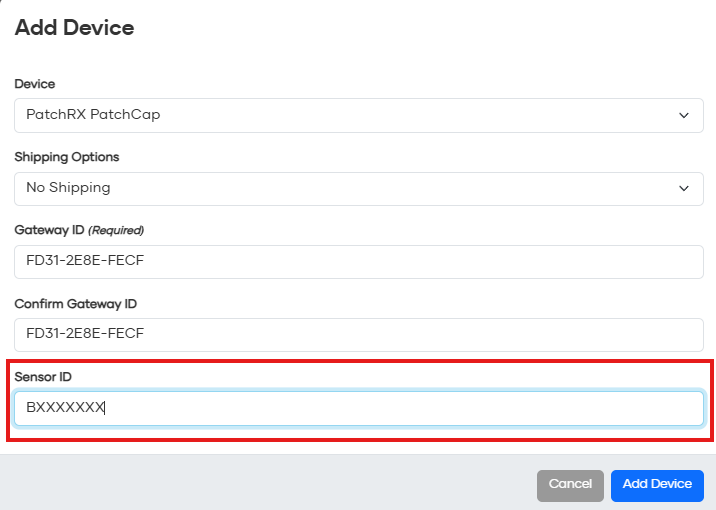
Setup must be completed through Tenovi Web App by your Health Care Provider before the device can be used with the Tenovi Gateway.
- Add the PatchCap device type to the Tenovi Web App.
- Add the PatchCap’s serial number as the Sensor ID.

Successful Medication Tracking
After attaching the PatchCap to the inside of your pill bottle cap, use your pill bottle like normal and take your medication as prescribed. Your care manager should send you a new PatchCap when you get a new pill bottle or the battery has run out.

Accurate Measurement
Make sure to keep the pill bottle top on the medication bottle intended to be tracked and not attached to a different medication. By applying the colored sticker to the top of the cap with the PatchCap, you can help keep track.

Setup & Use Steps
Power Your Gateway
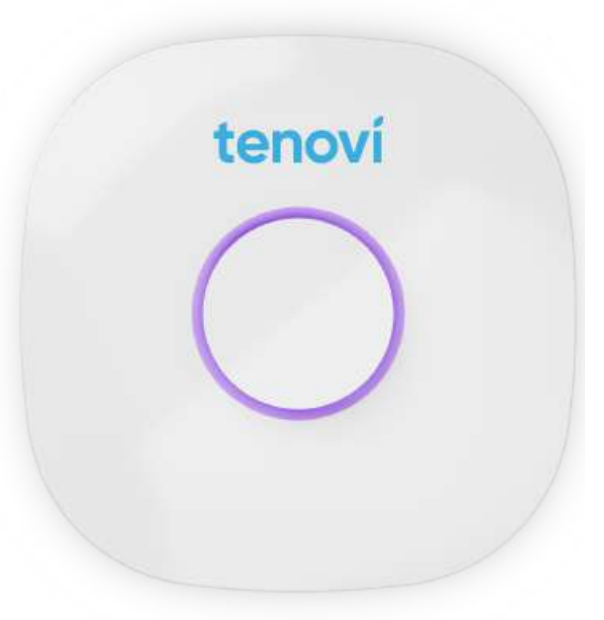
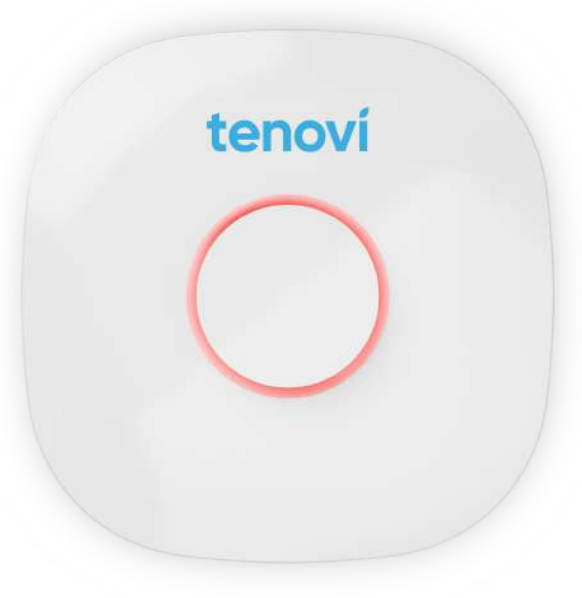
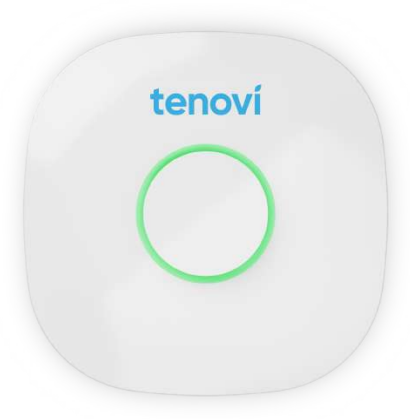
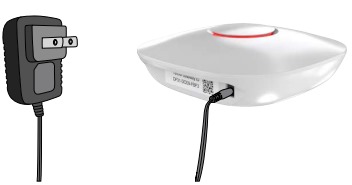
Step 1: Set up your Gateway by plugging it in. It will flash purple as it connects and then settle to a solid red color when it is connected. If your Gateway is already plugged in, unplug and then plug it back in.
Remove your pill bottle cap
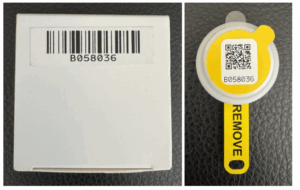
Step 2: Once removed from packaging, pull the yellow tab to power on your PatchCap.

Label your pill bottle cap
Step 3: Use the colored sticker (red, blue, etc) as a marker for PatchCap bottles by peeling it off and applying it to the top of the bottle cap.

Remove film and apply Patch
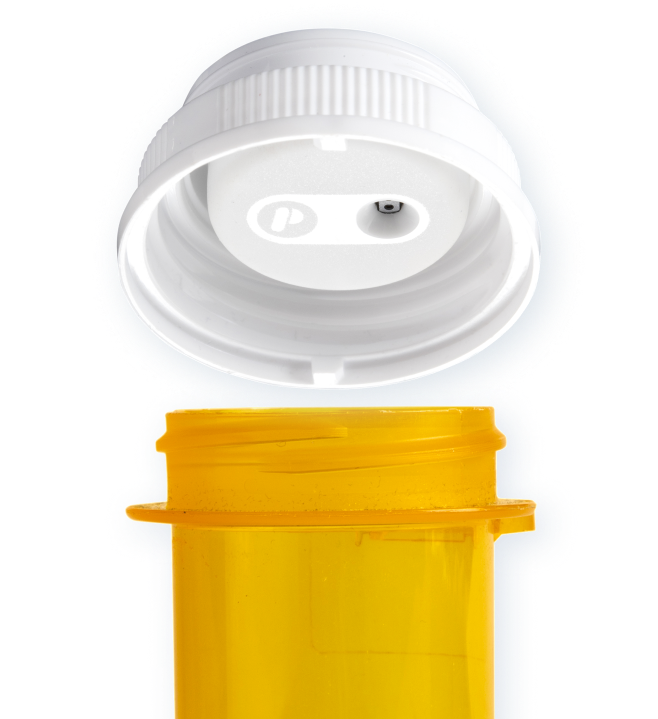
Step 4: Next, remove the transparent film on the PatchCap to reveal the adhesive. Apply the PatchCap to the inside of your pill bottle cap.

Reattach the pill bottle cap
Step 5: Use your pill bottle like normal and take your medication as instructed by your healthcare provider. Your PatchCap will track when you use your medication. When in range of the Gateway, all open and close events will be transmitted to your care provider.

When Taking a Measurement
Before Using Your PatchCap
- The care provider will have to add the PatchCap device type on the Tenovi Web App with the associated Sensor ID(serial number), before you the patient is able to use the PatchCap.
- If the patient set up their PatchCap and Gateway before the care provider added the device type on the Tenovi Web App, the patient must power cycle their Gateway.(unplug and plug it back in).
- Before setting up the PatchCap, please remove the yellow battery tab to power on the device.
- Each PatchCap includes a colored sticker with the corresponding Sensor ID. When setting up the PatchCap, it is important to correctly label the pill bottle. This is how the care provider will be able to track each specific medication that is taken.
Using Your PatchCap
- When using your PatchCaps, make sure you are within 15 feet of the Tenovi Gateway.
- Each time you open and close your pill bottle the Tenovi Gateway will receive a pair of open and close events,. The care provider will see these events, which should indicate when and how many times a patient took their medication.
Things to Know
- The care provider will be able to see the battery percentage metric with each pair of events that are sent by the Tenovi Gateway to the Tenovi Web App. This would be the best way for care providers to determine when a patient may need a replacement PatchCap.
Device Specifics
Pairing and Bonding
- Before this device can successfully send measurements to the Tenovi Gateway, your Care Provider will need to add the PatchCap device type with the Sensor ID to the patient profile on the Tenovi Web App.
- If the above step is done AFTER the Tenovi Gateway was plugged in, the Gateway will need to be reset. Please unplug and plug your Gateway back in.
- There are no additional steps for the patient to use their PatchCap with the Tenovi Gateway.
No Measurement Events
- If a Gateway detects that a PatchCap is in range, but the Gateway has not sent a medication event for that PatchCap in the last 24 hours, it will send a NO MEASUREMENT event.
- This event communicated that the system is working and there is a PatchCap in range of the Gateway, but the user has not generated a medication event.
Storage Events
- PatchCaps can store up to 128 events. Opening and closing a pill bottle generates two separate events, so the PatchCap will store 64 pair of open and close events.
- When the PatchCap comes within range of the Tenovi Gateway, it will automatically offload all stored readings.
Error Codes
This device does not display any error codes. If you are using your PatchCap, but don’t hear an audible beep from your Tenovi Gateway, or the LED on the Gateway doesn’t change from solid Red to solid Green after each pair of open and close events, then try these steps:
- If you are having trouble getting your PatchCap to work for the first time:
- Power cycle your Tenovi Gateway by unplugging it and plugging it back in. If the issue still persists, contact your care provider. The PatchCap may need to be added to the Tenovi Web App.
- If you have been using your PatchCap for a while, but it seems to have stopped working:
- Make sure you are within 15 feet of the Tenovi Gateway.
- Your PatchCap’s battery life may have depleted. Contact your care provider to inquire about a replacement PatchCap.