


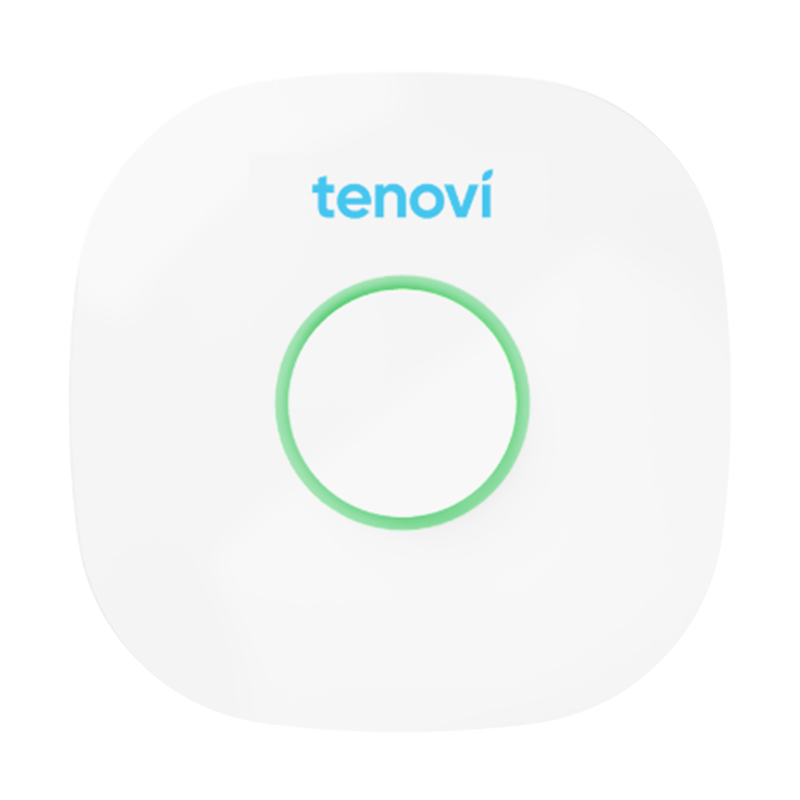
Tenovi Gateway Gen 2
Need help with your Tenovi Gateway Gen 2? By continuing below you will understand how the Tenovi Gateway functions and communicates with Bluetooth-enabled Devices.
Jump To SectionTop Tips for Successful Measurement
Power Your Tenovi Gateway
Make sure your Tenovi Gateway is receiving power before taking a measurement with a Bluetooth device we support.
- Gateway is plugged in using the provided power supply adapter. Do not use any other power supply.
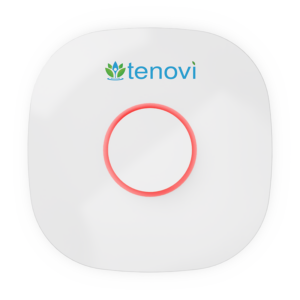
- The Gateway has a solid RED or GREEN LED ring light on the the top of the Gateway.
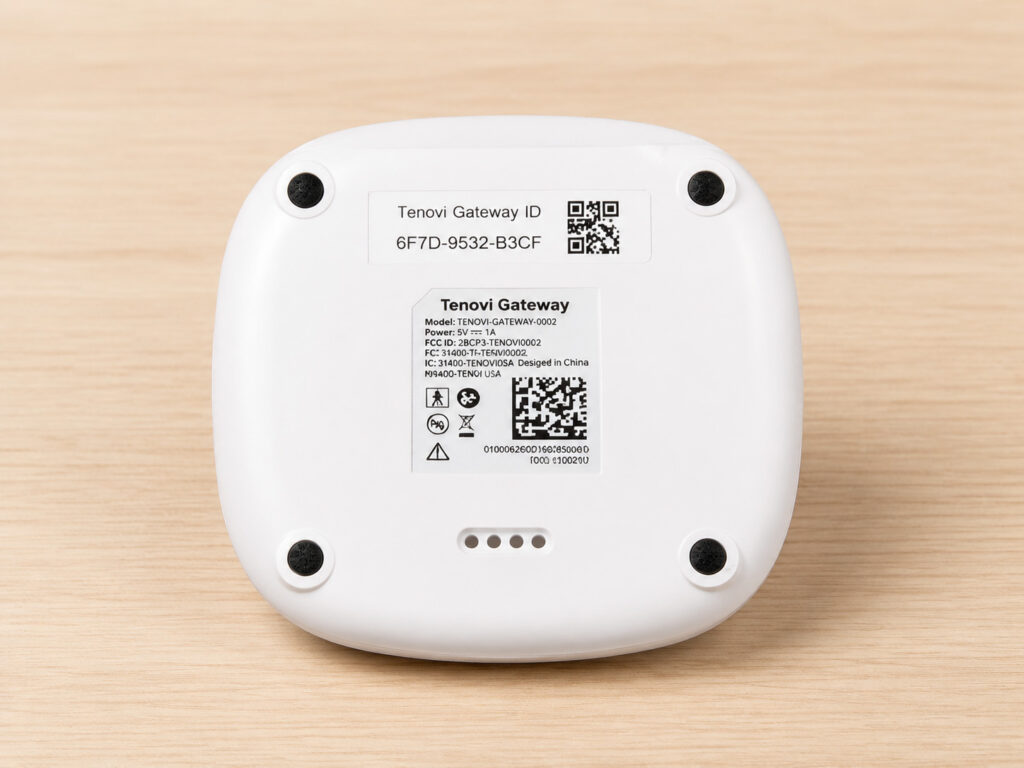
Where is the Tenovi Gateway ID?
The Tenovi Gateway ID is located on the bottom side of the Tenovi Gateway Gen 2.

How to Identify Gen 1 vs Gen 2 Models
- Location of Gateway ID Sticker: Gen 1 models have the Gateway ID sticker on the back side of the device. Gen 2 models have the Gateway ID Sticker on the bottom side of the device.
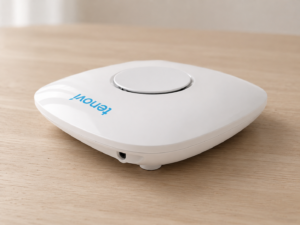
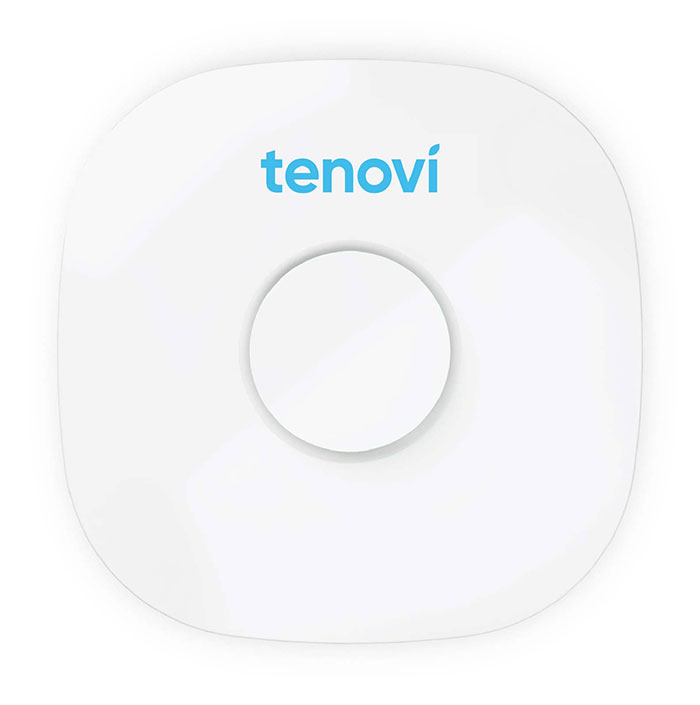
- Physical Attributes: The Gen 2 model is flatter and slimmer than the Gen 1 model. The logo does not include the lotus symbol on the Gen 2 model.
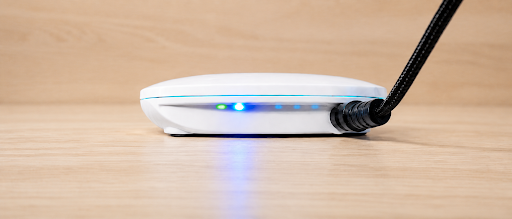
- Gateway LEDs: The Gen 2 model has additional LED lights on the back side of the device near the power cable port.
- If you have a Tenovi Gen 1 Gateway, click here.
Tenovi Gateway Gen 2:

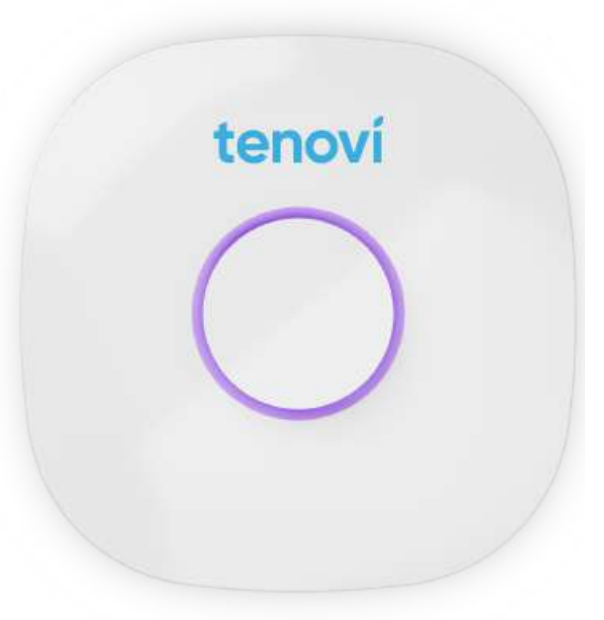
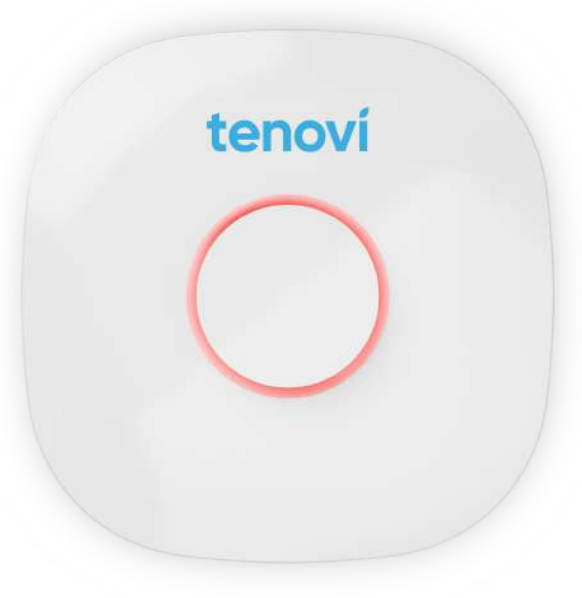
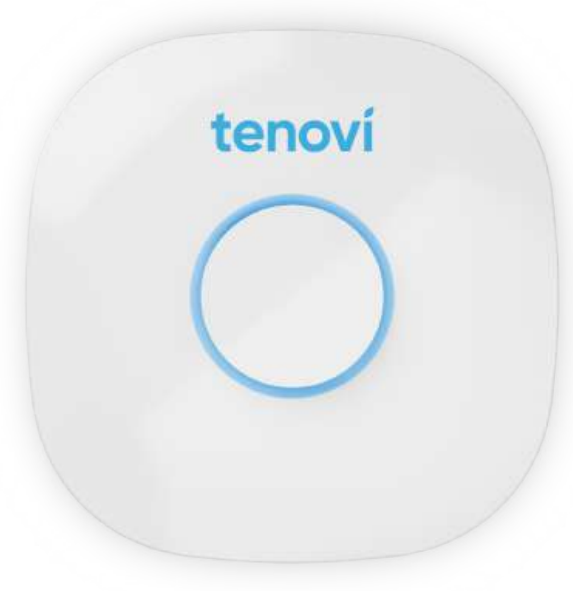
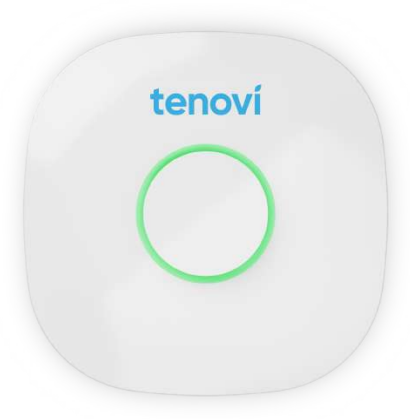
When Taking a Measurement
Before You Take A Measurement
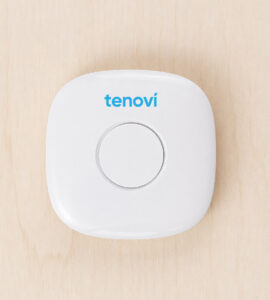
- Make sure the LED ring on the top of the Gateway is solid RED or GREEN.
- A slow blinking LED ring indicates that the Gateway has not found a cellular network to connect to.
- Measurements taken while the Gateway is in this state may be delayed in transmission.
Taking A Measurement
- Depending on the device(s) you use, the Gateway will spin yellow during or after you take a measurement.
- After a successful measurement is taken while within 20 feet of the Gateway, the Gateway will beep and the LED ring will turn GREEN. This indicates you have taken a measurement and it has been successfully transmitted to your care provider.
Device Specifics
Modem Status Indicator LED
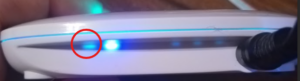
The modem status LED is GREEN with a slow blinking RED LED when the Gateway is powered on but does not have a cellular signal. A GREEN LED with a fast blinking RED LED (blinks twice a second) means the Gateway is powered on and has a cellular signal, which are needed to successfully transmit measurements. For troubleshooting tips, please see the Error Codes section.
Connected Devices
Although not always on, there are 3 indicator lights next to the power adapter port. Whenever a device is connected to the Gateway, at least one of these lights will be on. If only one device is connected, then there will only be one light visible. If there are three devices connected, then all three lights will be visible. These lights will turn off after the device disconnects from the Gateway. Being able to verify if a device is connected to the Gateway or not is very helpful when troubleshooting connectivity or transmission issues.
Bonding Devices to the Gateway
Certain devices have a pairing step that must be completed before the Gateway can connect and transmit measurements. Please refer to your device’s specific support page on our Support Center for more details.
Estimated Readings
For devices that have the ability to store historical measurements, whenever the clock on the device is reset (such as when batteries are removed), the device defaults to the preset time. So when a measurement is sent to the Gateway and the device has a different time than the Gateway, the reading may come in as estimated on the Tenovi Web App. Please refer to your device’s specific support page on our Support Center for more details.
Device Reissue
- Certain devices have a additional steps that must be completed before the Gateway can connect and transmit measurements. Please refer to your device’s specific support page on our Support Center for more details.
- See our Device Reissue Guide below.
Error Codes
Modem Status LED
Ensure this status LED is Green with a fast Red blink. This means the Gateway is receiving power and has a cellular connection, which is needed to successfully transmit measurements.
If the LED is off, please ensure that the power supply adapter is plugged into a working outlet and the other end is plugged firmly into the Gateway. If problem persists, try a different outlet. Otherwise, contact Tenovi Support for a replacement power supply.
If the LED is Green, but has a slow blinking Red light, unplug your Gateway and move it to a new outlet that is closer to a window or somewhere you receive good cellular signal.
The Tenovi Gateway does not display any letter error codes. For specific device error codes, please refer to the Support Center to find your device’s dedicated support page.